Connect AI agents to ComfyUI over the Model Context Protocol. Generate images, video, audio, and 3D, and run real workflows on Comfy Cloud or your own machine.
Public beta. Comfy MCP is in public beta. APIs, tools, and behavior may change while we iterate. See Feedback to report issues or share suggestions.
Comfy MCP connects AI agents to ComfyUI over the Model Context Protocol. Once connected, you can generate images, video, audio and 3D, search models, nodes and templates, and run real ComfyUI workflows from a chat with your agent.It comes with two connections: a Comfy Cloud connection and a local ComfyUI connection, with the local one fully open source.
Stuck on anything below? The best way is to hand this page to your agent and ask for help.
For new users, we recommend starting with the cloud connection — it is the simplest setup. If you use claude.ai, ChatGPT, or the Claude Desktop chat app, the cloud connection is also the more compatible choice.If you already run ComfyUI locally or in your own deployed environment, or you work mostly in a coding agent like Claude Code, Cursor, or Codex, start with the local connection.
For Mac users, if you plan to run open-source models, we recommend the cloud connection. Today’s open-weight models — the local versions of MiniMax H3, LTX-2.3, and similar — are large, and will not run at a workable speed on the Apple GPU.
Running both at once is normal, and most clients host two MCP servers happily. They sign in to the same Comfy account, but separately — one sign-in does not cover the other.
The hosted connection, linking your agent to your Comfy Cloud account. Nothing to install, and workflows run on Comfy Cloud GPUs. To learn more about Comfy Cloud, see Comfy Cloud.
You need a Comfy Cloud account before connecting. Sign up if you do not have one yet; new users get 5 free runs to try it out. OAuth sign-in during setup uses your Comfy account.
Comfy Cloud MCP runs at:
https://cloud.comfy.org/mcp
Pick your client:
Claude Desktop
Claude Code
Cursor
Codex
OpenClaw
Other clients
Claude Desktop adds Comfy Cloud as a custom connector through its UI, then runs the OAuth sign-in.
1
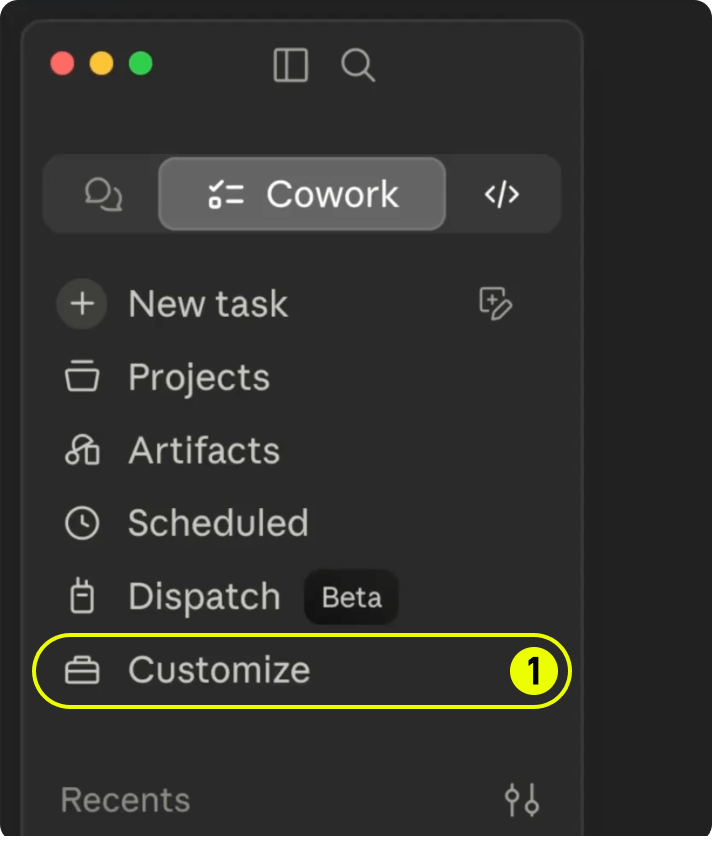
Open Customize
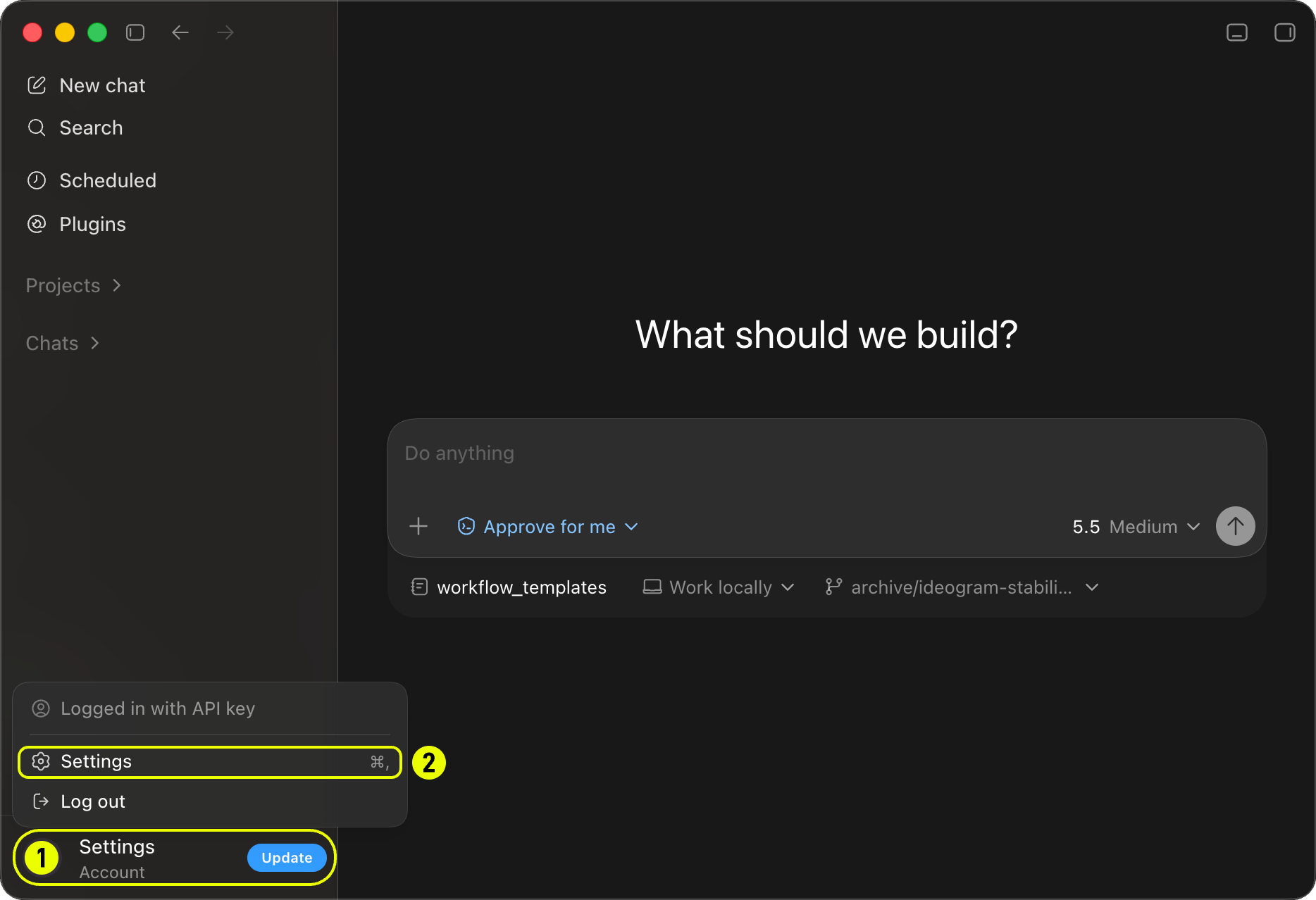
In the sidebar, click Customize (labeled 1).
2
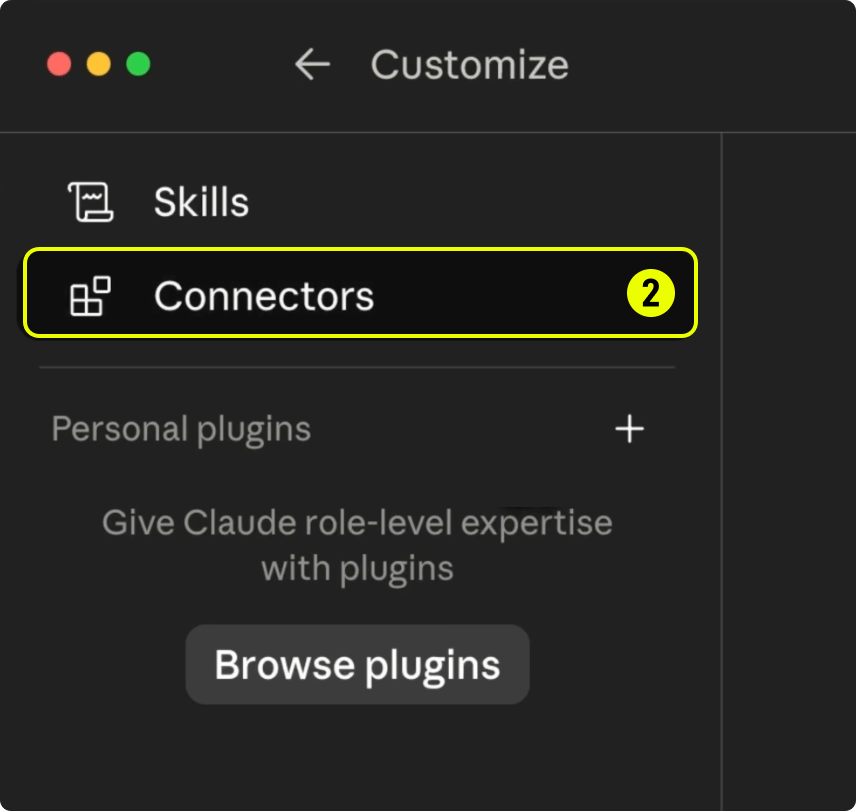
Open Connectors
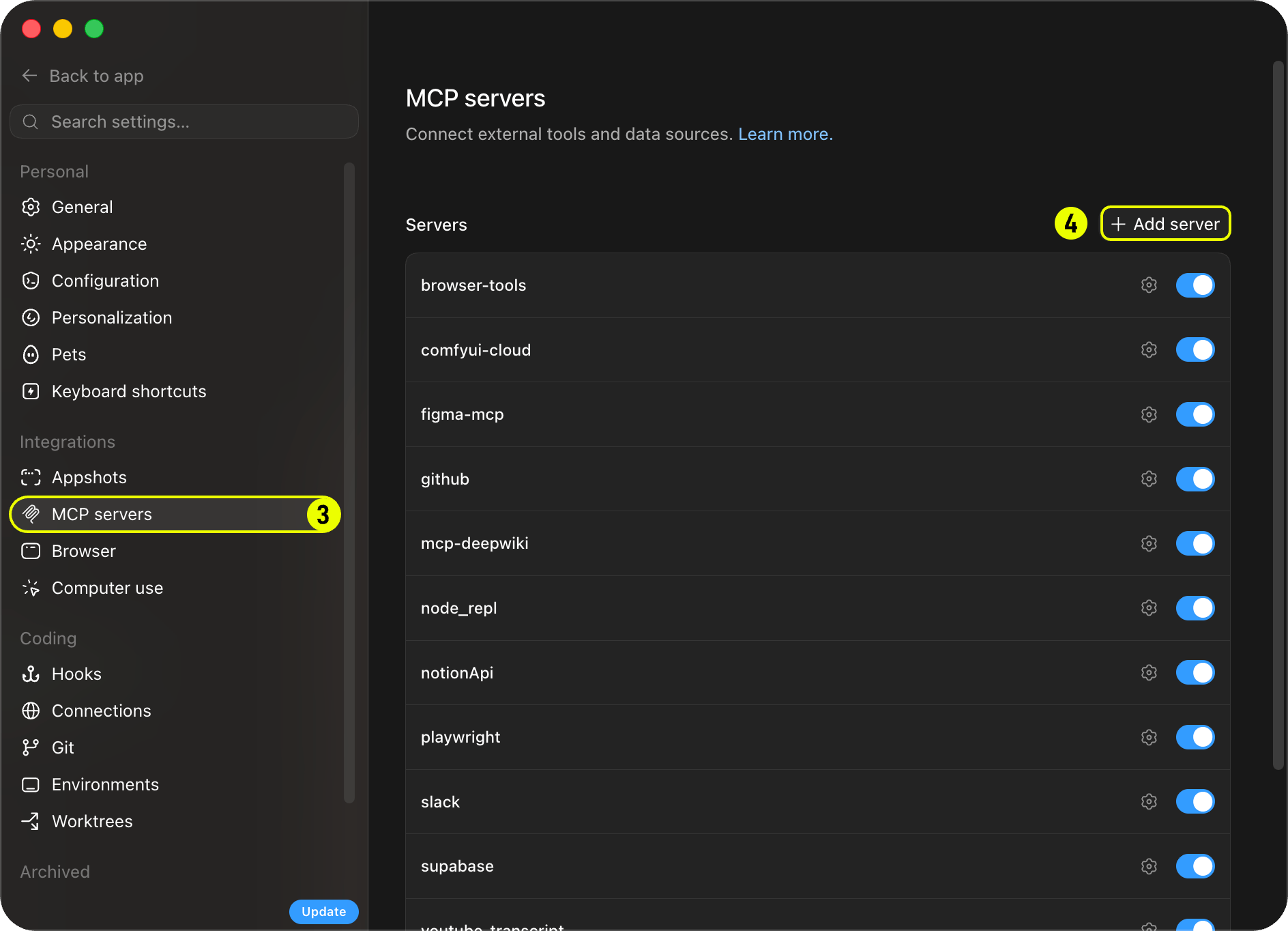
Click Connectors (labeled 2).
3
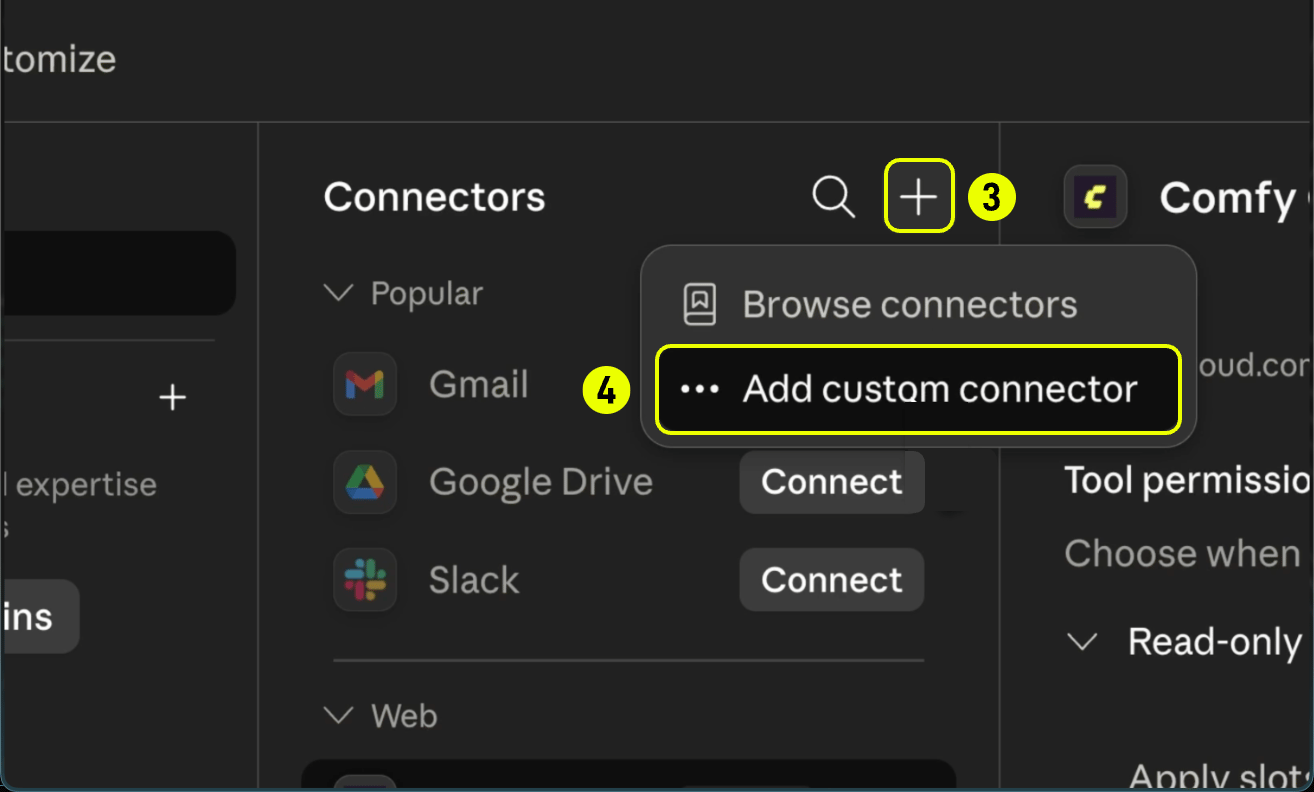
Add a custom connector
Click the + button (labeled 3) in the Connectors header.
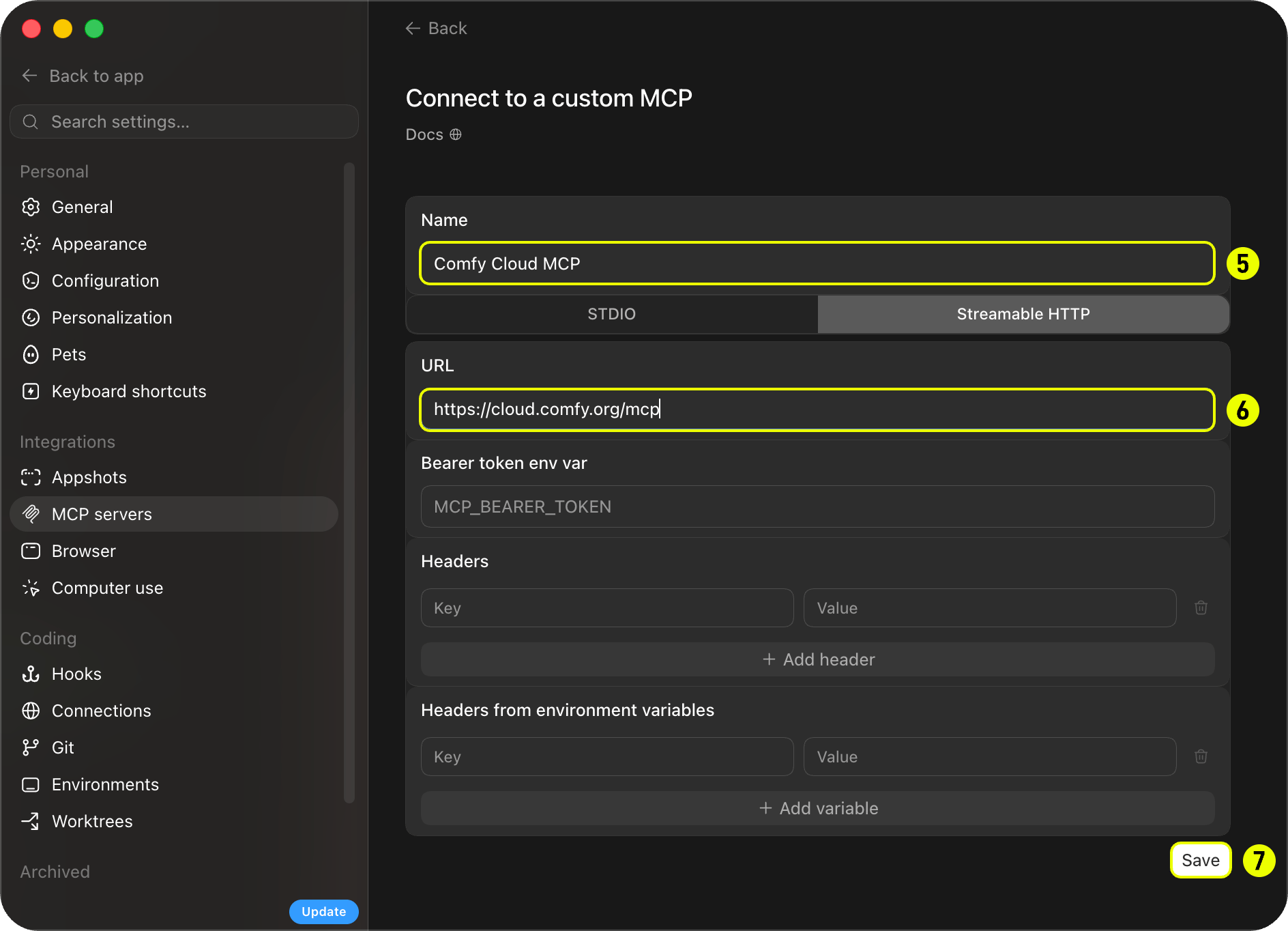
Choose Add custom connector (labeled 4).
4
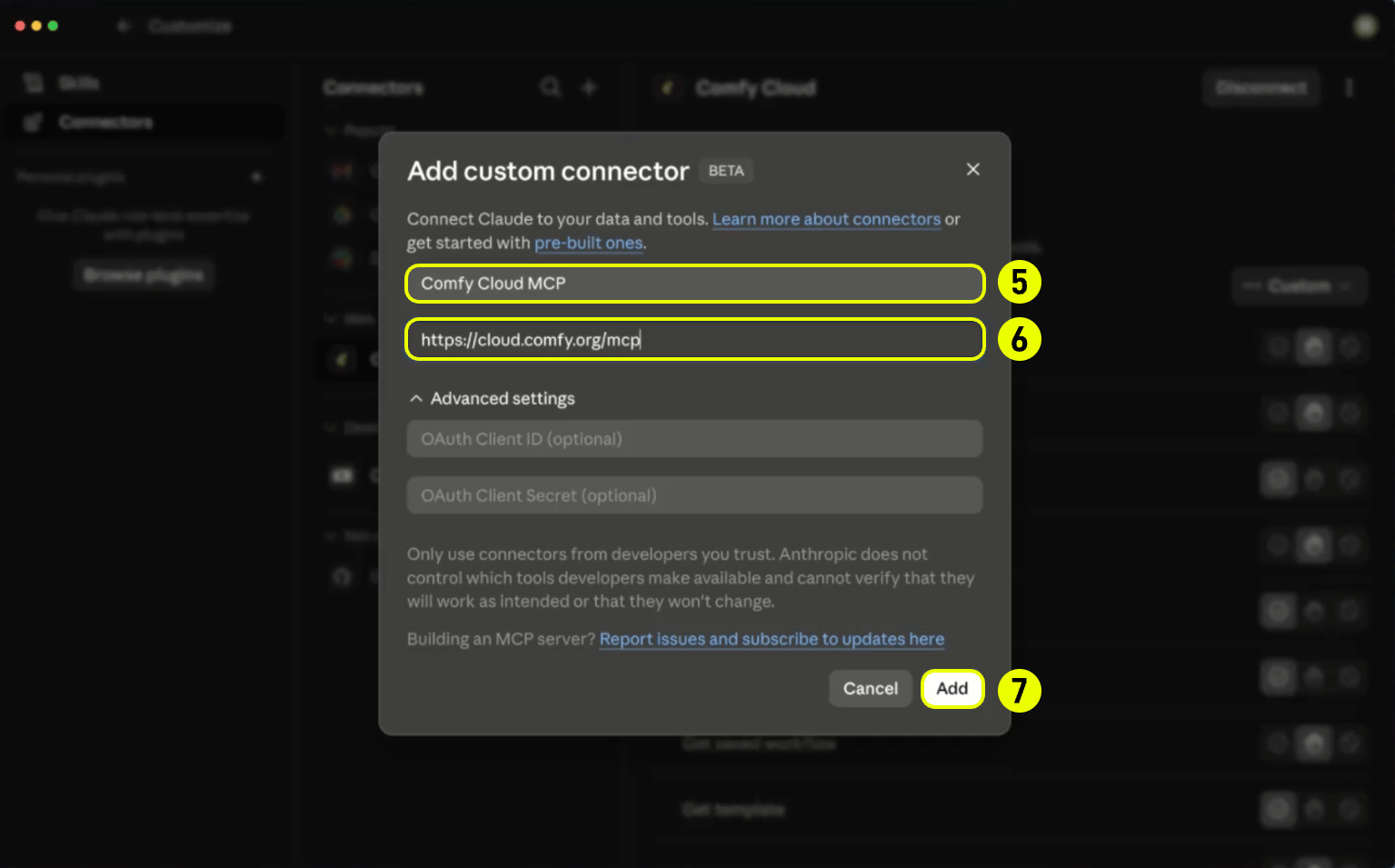
Enter server details
Enter a name such as Comfy Cloud MCP in the Name field (labeled 5).
Set the Remote MCP server URL to https://cloud.comfy.org/mcp (labeled 6).
Click Add (labeled 7).
5
Sign in
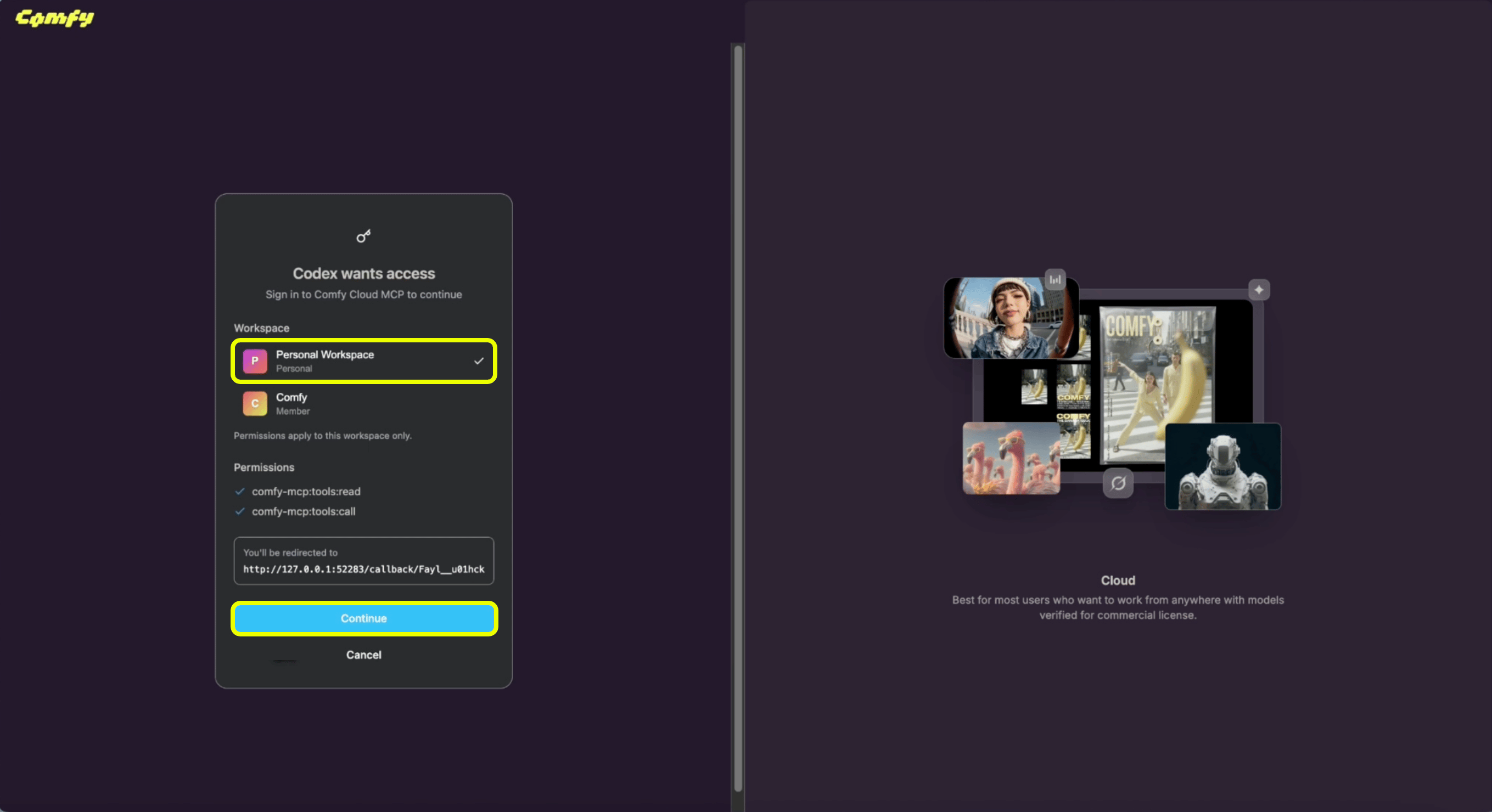
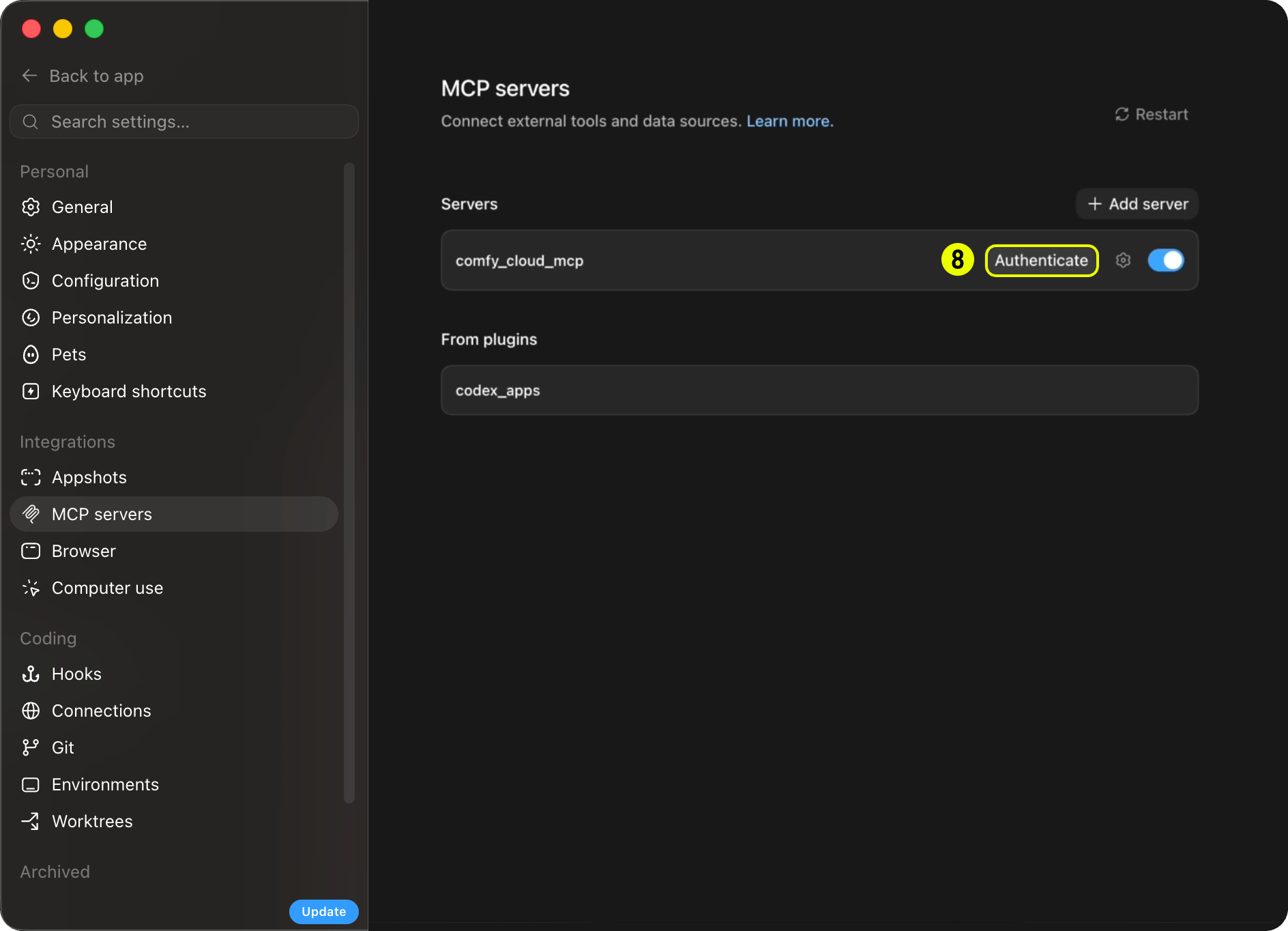
When the browser opens, choose your workspace (for example Personal Workspace).
Click Continue to authorize the connector. You are connected.
Install the comfy-cloud plugin. It adds the MCP connection and slash commands in one step. The plugin is published through the Comfy Skills repository, which hosts Claude Code plugins and community agent skills for Comfy.
1
Add the marketplace
Register the Comfy Skills marketplace (one-time):
/plugin marketplace add Comfy-Org/comfy-skills
2
Install the plugin
/plugin install comfy-cloud@comfy-skills
3
Sign in
Run /mcp, select comfy-cloud → Authenticate. Your browser opens to sign in, and tokens refresh automatically.
claude mcp add --transport http comfy-cloud https://cloud.comfy.org/mcp
Then run /mcp, select comfy-cloud → Authenticate. Add -s user to make it available in all your projects.This path still exposes the same workflows as MCP prompts: /mcp__comfy-cloud__generate-image, /mcp__comfy-cloud__search-models, and so on (the /mcp__<name>__ prefix uses the name you passed to claude mcp add). The plugin above is recommended because it wraps these as the friendlier /comfy-cloud:* commands.
Cursor connects to remote MCP servers over HTTP. Cursor does not support MCP OAuth today. Add Comfy Cloud with a Comfy Cloud API key in your MCP config.
1
Open Cursor Settings
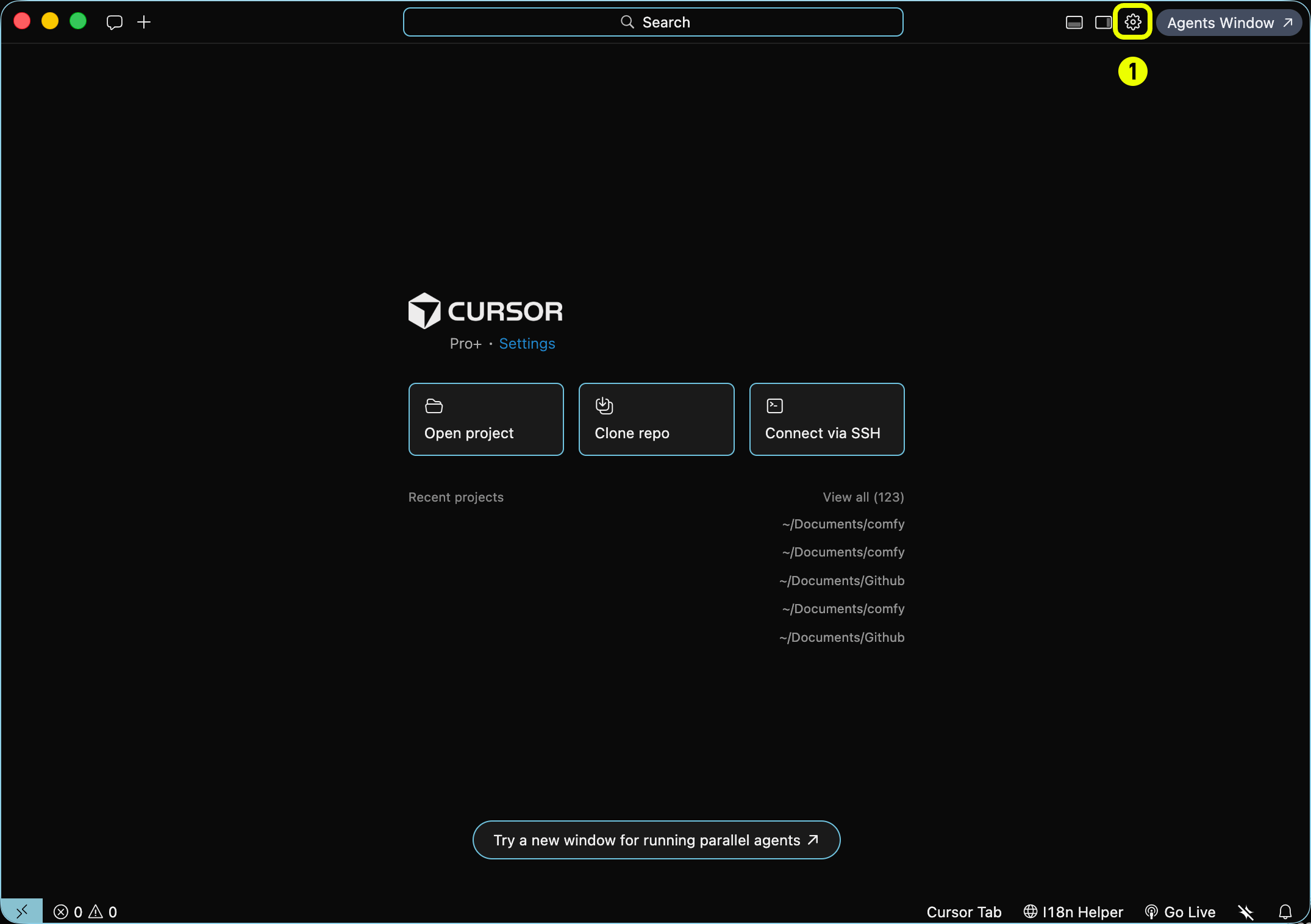
Click the Settings gear in the top-right corner (labeled 1).
2
Open Tools & MCP
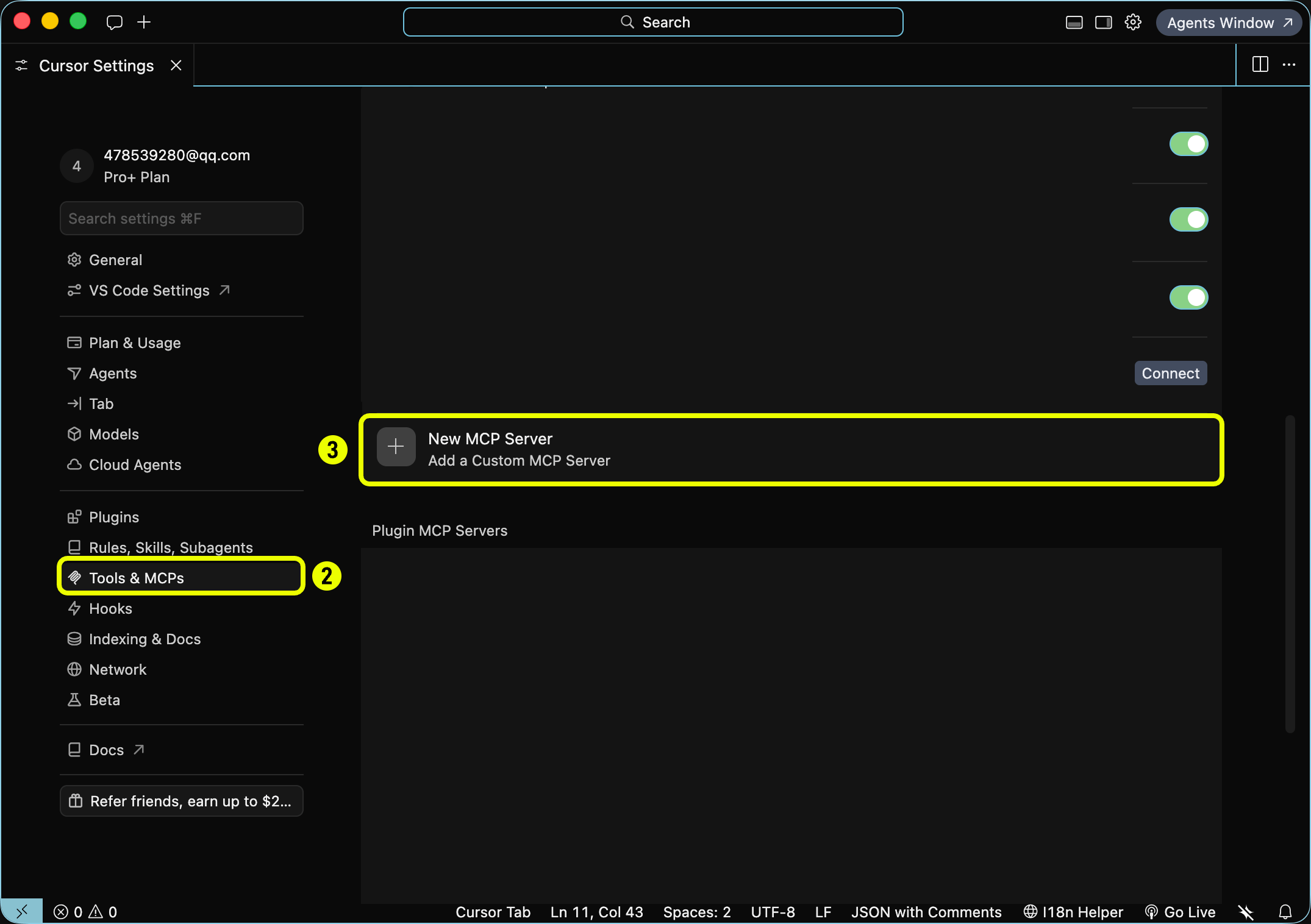
In the sidebar, click Tools & MCPs (labeled 2).
Click + New MCP Server (labeled 3) → Add a Custom MCP Server.
3
Add your API key
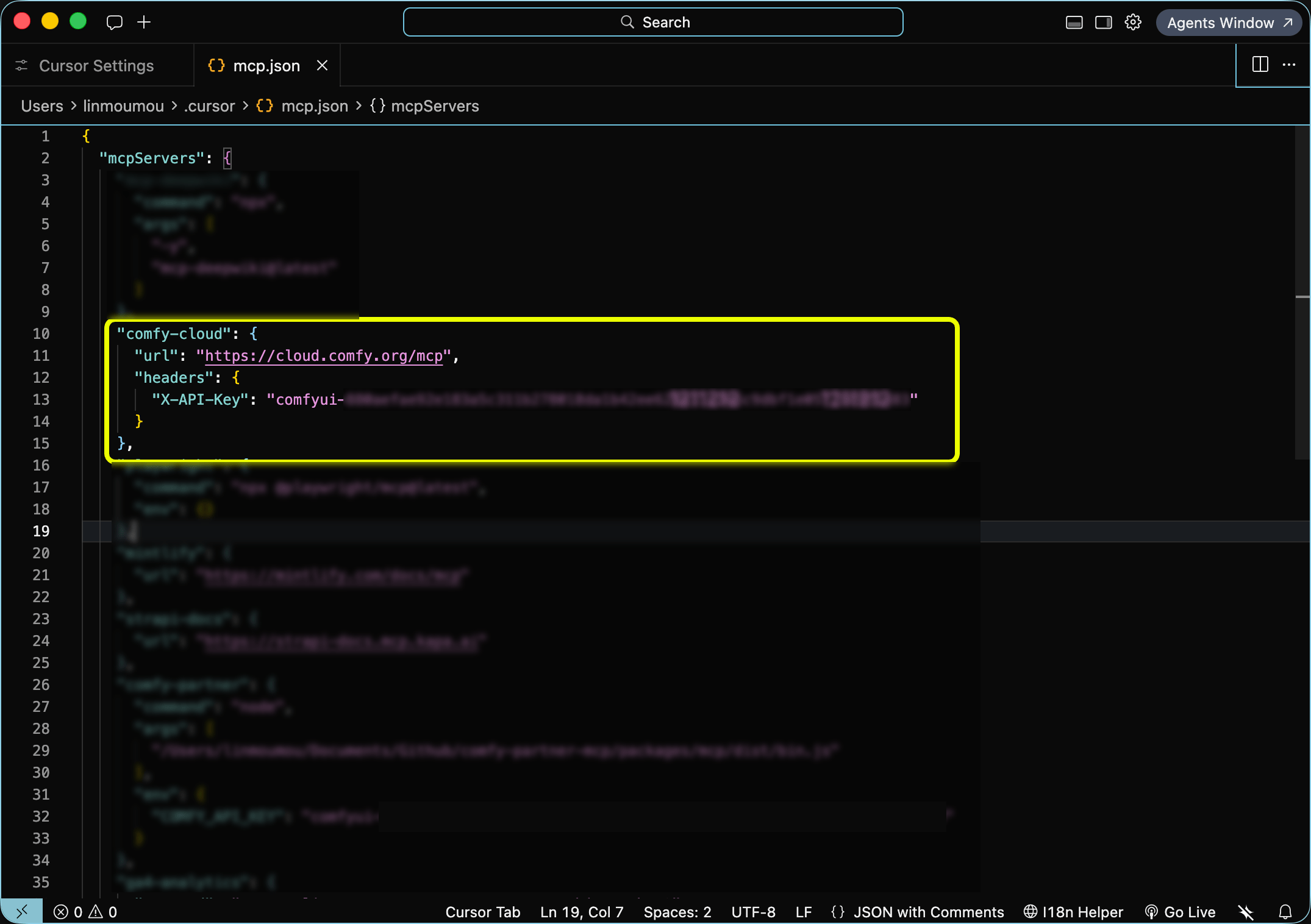
Edit ~/.cursor/mcp.json (global) or .cursor/mcp.json (project). Set the server URL and pass your Comfy Cloud API key in the X-API-Key header. Create a key at platform.comfy.org/profile/api-keys (starts with comfyui-):
This writes an entry to ~/.codex/config.toml (or .codex/config.toml in a trusted project).
API key instead of OAuth (headless or CI)
When no browser is available, add the server with a header pulled from an environment variable. Create a key at platform.comfy.org/profile/api-keys (starts with comfyui-), then add to ~/.codex/config.toml:
Set COMFY_API_KEY in your shell or system environment. Do not commit the key to version control.
Install the Comfy Cloud skill from ClawHub. It connects OpenClaw to the hosted MCP server (cloud.comfy.org/mcp). Cloud only: it does not drive a local ComfyUI install.
Register the MCP server and sign in with your Comfy account:
openclaw mcp set comfy '{"url":"https://cloud.comfy.org/mcp","transport":"streamable-http","auth":"oauth"}'openclaw mcp login comfyopenclaw gateway restart
openclaw mcp login prints an authorization URL. Open it, sign in, and finish the flow as the CLI directs (it may ask you to rerun with a --code value). Verify with openclaw mcp status --verbose.
When auth: "oauth" is set, OpenClaw ignores static headers on that server entry. Do not combine OAuth with a hardcoded API key header.
3
Start generating
Ask in plain language (“generate an image of a cat astronaut”, “find a Wan 2.2 video template”). OpenClaw invokes the MCP tools on your behalf.
export COMFY_API_KEY="comfyui-..."openclaw mcp set comfy '{"url":"https://cloud.comfy.org/mcp","transport":"streamable-http","headers":{"Authorization":"Bearer ${COMFY_API_KEY}"}}'openclaw gateway restart
Prefer Authorization: Bearer over a custom X-API-Key header for OpenClaw. Some OpenClaw builds drop custom headers on streamable-http transports; Bearer survives proxies more reliably. Put COMFY_API_KEY in your shell profile or OpenClaw env. Do not commit the key.
Any MCP client that supports remote HTTP transport can connect to Comfy Cloud. The server URL is always https://cloud.comfy.org/mcp.
1
Add the server URL
Add a remote MCP entry pointing at https://cloud.comfy.org/mcp. Most clients use a JSON config with a url field:
Windsurf uses serverUrl instead of url. Amp uses the same mcpServers shape in Settings → MCP Servers or ~/.config/amp/settings.json.
2
Authenticate
If your client supports MCP OAuth, sign in through the browser when prompted. Otherwise, add an API key header (see below).
3
Restart and verify
Restart your client. You should see Comfy Cloud tools (search_templates, submit_workflow, get_output, and others) registered under the comfy-cloud server.
Headless / CI (API key): when OAuth is not available, create a key at platform.comfy.org/profile/api-keys and pass it as the X-API-Key header:
You do not call MCP tools yourself. Your agent picks the right tool based on what you ask for. Slash commands and prompts (below) are shortcuts that steer the agent toward common tasks, but plain language works too (“generate an image of a cat astronaut”, “upscale this photo”, “find a Wan 2.2 video template”).Typical flow:
Discover what is available (search_templates, search_models, search_nodes, or cql for graph-style questions).
Run a generation: run_template for a matching pre-built template, submit_workflow for a custom workflow (with upload_file when an input image is needed), or partner_generate for partner models like Flux, Grok, Gemini, OpenAI, Ideogram, and Seedance.
Wait and retrieve outputs (wait_for_job, then get_output returns a download command your agent runs in your shell).
The server prefers matching pre-built templates before building a workflow from scratch, which tends to produce better results faster.
These are the tools your agent has access to once connected. Names match what appears in MCP client logs and debugging output.Discovery
Tool
Description
search_templates
Search pre-built workflow templates from comfy.org by text, tag, media type, or model
get_template
Fetch a template’s full workflow JSON for inspection or hand-editing
get_template_schema
See which of a template’s parameters can be overridden at run time
search_models
Search the model catalog by text, type, base model, or source
search_nodes
Search available nodes by text, category, or input/output types. Also surfaces subgraph blueprints (pre-wired node groups like Text to Image or Remove Background)
get_node
Get the complete input spec for specific nodes, including full option lists
cql
Run a CQL graph query for structural questions (for example, which nodes produce images, or paths between node types). Use search_nodes when you need full input specs for a specific node
get_prompting_guide
Prompt style and recommended settings (steps, cfg, sampler, resolution) per model family
Generation
Tool
Description
run_template
Run a pre-built template by name, with optional parameter overrides — the preferred path when a template matches
submit_workflow
Submit a ComfyUI API-format workflow for execution on Comfy Cloud
partner_generate
Generate with partner-API models (Flux/BFL, Grok, Gemini, OpenAI, Ideogram, Seedream/Seedance, and more)
upload_file
Upload an input image or file for use in workflows (for example, with LoadImage)
apply_slots
Apply parameter overrides to a workflow’s interior values and return the modified workflow
Jobs and batches
Tool
Description
get_job_status
Poll execution status of a submitted workflow
wait_for_job
Wait until a job finishes instead of polling repeatedly
get_output
Retrieve output images, videos, or audio from a completed workflow
use_previous_output
Chain workflows by reusing output from one run as input to another
Submit many generations in one call and collect them together later — the batch ID stays valid across sessions
Saved workflows
Tool
Description
list_saved_workflows
Browse your saved workflows from Comfy Cloud
get_saved_workflow
Inspect a saved workflow’s nodes, inputs, and customizable settings
save_workflow
Save a workflow to your Comfy Cloud account
update_workflow
Update an existing workflow in place as a new version (earlier versions stay recoverable)
run_saved_workflow
Run a saved workflow by filename — the server converts it from editor format to executable format automatically
Sharing workflows
Tool
Description
share_workflow
Publish a saved workflow and return a ?share=<id> URL anyone can open
import_shared_workflow
Resolve a share URL or bare share ID into workflow JSON, optionally saving it to your account
Hub URL share IDs: the trailing hyphen-delimited hex token in a comfy.org/workflows/<slug>-<hex> hub URL is the share ID. For example, comfy.org/workflows/topaz-starlight-upscale-1c77e82713b7 has share ID 1c77e82713b7. Pass that token to import_shared_workflow as share_id. The share_url parameter only accepts ?share=<id> query URLs like https://cloud.comfy.org/?share=..., not hub page URLs.Apps and links
Tool
Description
create_app
Turn a saved workflow into an App Mode app — a simplified “run this workflow” view with chosen inputs and outputs
get_app_mode_url
Get the stable link that opens a workflow as a runnable app
get_workflow_canvas_url
Get a link that opens a workflow directly on the Comfy Cloud canvas, ready to view, edit, or run
Account and session
Tool
Description
get_billing_status
Check your credit balance, subscription tier, and billing link
get_server_info
Confirm which server the agent reached: environment, host, version, and auth state
submit_feedback
Get the beta feedback survey link
report_session_summary
Share an anonymized session summary with the Comfy team — only with your explicit consent; the agent must ask first, and no prompts, file paths, or personal information are included
Prompts (Claude Desktop)Claude Desktop does not support Claude Code slash commands. Instead, open the prompt picker for the same workflows:
Prompt
Description
generate-image
Generate an image from a text description
generate-video
Generate a video from text or an image
generate-audio
Generate audio, music, or sound effects
generate-3d
Generate a 3D model from text or an image
upscale-image
Upscale an image to higher resolution
remove-background
Remove the background from an image
search-templates
Find pre-built workflow templates
search-models
Search for models (checkpoints, LoRAs, VAEs)
search-nodes
Search nodes and get wiring suggestions
help
See what you can do with ComfyUI Cloud
You can also skip prompts and ask in plain language. The MCP tools work the same way.
Discovery is free: search_templates, search_models, and search_nodes work with just a Comfy account. Running generations requires an active Comfy Cloud subscription. A credit or top-up balance alone does not grant access: you need an active subscription to run generations, even if you have unused credits.
The MCP server runs in the cloud and the MCP itself doesn’t write files to your machine. When a generation completes, your agent calls get_output, which returns:
A temporary signed download URL (valid for a short window).
A ready-to-run shell command (curl on macOS and Linux, curl.exe on Windows).
Your agent should run that command in your shell. The command includes the destination path and filename.
Run the returned command verbatim. Do not re-encode or edit the signed URL. The signature lives in the query string and breaks if the URL is modified.
If your MCP client cannot run shell commands (some GUI-only setups), copy the command and run it yourself in a terminal.Asset upload and download depend on the client’s file access. If Claude Desktop or another agent client has trouble handling asset uploads or downloads, it may be related to the agent’s access to your local file directories. For Claude users we recommend Claude Code (desktop app or terminal), which has more capabilities. Similarly, for other agent families, the coding agent is usually better than the web chat version.
Upload size limits may apply depending on your MCP client. Some clients impose their own limits on file uploads.
Authentication
OAuth or API key. Claude Code and Claude Desktop use a one-time browser OAuth flow. Cursor requires a Comfy Cloud API key in your MCP config (no OAuth). Other headless clients can pass a Comfy Cloud API key via the X-API-Key header instead. A device-code OAuth flow for clients that cannot open a browser is planned.
The open-source connection: your client launches the server on your machine and it drives the ComfyUI installed there.comfy-mcp is Comfy’s first-party local MCP server — the official way to drive a local ComfyUI install from AI agents (Claude Code, Claude Desktop, Cursor, and other MCP clients).Unlike the cloud and partner servers, it talks to the ComfyUI running on your own machine — so it can run your workflows and inspect the nodes, custom nodes, and models your install actually has.
The fastest setup: hand it to your agent. Paste https://docs.comfy.org/agent-tools/mcp#installation into your AI client and ask it to set up the local connection for you.
This puts a comfy-mcp console script on your PATH — that command is the MCP server (it speaks MCP over stdio). Point your AI client at it below. (Hacking on the server itself? pip install -e . from a checkout of the repository instead.)
COMFY_BIN (optional). MCP clients launch the server with their own environment, which often does not include your shell’s PATH. If comfy lives in a virtualenv or a non-standard location, set COMFY_BIN to its absolute path (for example /path/to/venv/bin/comfy). Every client example below shows where it goes; drop it if comfy is already on the environment your client launches the server with.
All clients speak the same MCP stdio contract: run the comfy-mcp command as a server. Pick your client:
Claude Desktop
Claude Code
Cursor
Edit claude_desktop_config.json (Settings → Developer → Edit Config; on macOS it lives at ~/Library/Application Support/Claude/claude_desktop_config.json), add the server, then restart Claude Desktop:
pip install "comfy-cli>=1.14.0" # the enginecomfy install # create a ComfyUI workspace (skip if you have one)pip install comfy-mcp # this MCP server → the `comfy-mcp` command
2
Launch ComfyUI and leave it running
comfy launch
3
Add the server to your client
Use the snippet for your client above, then restart / reload it so the tools appear.
4
Ask your agent to run a workflow
For example:
“Confirm my local ComfyUI is running, then run the workflow at ~/workflows/txt2img.json and show me the image.”
Under the hood the agent calls server_info to confirm ComfyUI is up, run_workflow to execute the workflow JSON, and fetch_outputs to collect the result.
Each tool maps onto a comfy-cli command, run with --where local. Highlights:
Tool
Purpose
server_info()
Is a local ComfyUI running, where, and which workspace. Call first.
run_workflow(workflow_path, wait=True)
Run a workflow JSON; wait=False submits async and returns a prompt_id.
job_status / wait_for_job / watch_job
Poll, wait on, or stream a submitted job.
fetch_outputs(prompt_id, out_dir)
Copy a finished job’s outputs into out_dir.
launch_comfyui / stop_comfyui
Start or stop the local ComfyUI.
search_templates / fetch_template
Find a built-in template and write its runnable workflow JSON.
search_nodes / get_node / list_nodes
Inspect the node classes in your live local install (custom nodes included).
search_models
List the model files on disk.
validate_workflow
Pre-flight a workflow against the live object_info before a slow run.
Node introspection and model search read your live install — custom nodes included — which is the local differentiator from the cloud connection. See the repository for the full tool list and reference.
Claude Code plugin marketplace and community skill library. The comfy-cloud plugin used above is distributed here; browse or contribute additional skills for Comfy workflows.
Command-line tool for local ComfyUI install/launch and for calling hosted partner nodes from scripts or CI (comfy generate, in beta). Complements MCP when you need terminal or automation workflows.
Any MCP-compatible client.The cloud connection needs remote HTTP support. Claude Code, Claude Desktop, Cursor, Codex and OpenClaw have first-class setup above; Windsurf, Amp and others use the same URL with OAuth or an API key.The local connection needs a client that can launch a local stdio server as a subprocess. That rules out browser-based clients. claude.ai and ChatGPT accept remote connectors only.
What's the server URL?
The cloud connection runs at https://cloud.comfy.org/mcp.The local connection has no URL. Your client launches the comfy-mcp command directly and talks to it over stdio.
Can I use it with my local ComfyUI?
Yes. That is the Local Comfy MCP Connection. It drives the ComfyUI installed on your own machine, so your agent sees the models, LoRAs and custom nodes you actually have, and runs on your GPU.
Can I connect both the cloud and local connections at once?
Yes, and we recommend it if you run ComfyUI locally. Most clients host two MCP servers happily, and your agent keeps them straight. Each connection runs its own workflows and returns its own results.The two sign-ins are separate, though. Signing in on one does not sign you in on the other, even though it is the same Comfy account.
How do I know if my machine can run the local connection?
Ask your agent. It reads your hardware before starting anything heavy.On a Mac, use the cloud connection for generating: today’s open-weight models are too large to run at a workable speed on the Apple GPU. On a PC with a dedicated graphics card, 24 GB or more of VRAM handles most things including video; 8–24 GB is fine for images but video will be slow or will not fit; under 8 GB, use cloud.
Is it generally available?
The cloud connection is in public beta. APIs, tools and behavior may change while we iterate. The local connection is available for local ComfyUI installations. See Feedback to report issues.
Discovery is free on both connections: searching templates, models and nodes needs only a Comfy account.On the cloud connection, running generations requires an active Comfy Cloud subscription; new users get 5 free runs. On the local connection, runs are free because they happen on your hardware, with one exception: partner models execute on partner infrastructure and spend credits.
Do I need an API key?
Not for interactive clients that support OAuth, including Claude Code, Claude Desktop, Codex and OpenClaw.Cursor requires a Comfy Cloud API key in your MCP config; there is no MCP OAuth there yet. Headless and CI setups with no browser need one too. See the Cursor and Other clients tabs under Set up the cloud connection.
You do not call MCP tools yourself — your agent picks them based on what you ask for. Typically it discovers what is available (search_templates, search_models, search_nodes), runs a generation, then waits and retrieves the output. See What your agent can do.
Where do my outputs go?
On the cloud connection, the server never writes to your machine: get_output returns a temporary signed URL and a ready-to-run download command for your agent to execute in your shell. See Uploads and downloads.On the local connection, ComfyUI writes into your workspace’s output/ directory, and fetch_outputs(prompt_id, out_dir) copies a finished job’s files anywhere you name.
I started on one connection and now I need the other. What do I do?
Nothing to undo — add the second connection alongside the first.Going local → cloud (you need Cloud GPUs or partner models): ask your agent to sign you in, then add https://cloud.comfy.org/mcp to your client.Going cloud → local (you want your own models and custom nodes): install ComfyUI and the local server, then point your client at it. Your agent can do most of this for you.
How do I switch between the local and cloud connections?
Just ask your agent. With both connections added, say where you want a job to run — “run this one on Comfy Cloud”, “do this locally” — and it uses the right connection. There is no mode to toggle and nothing to reconfigure between runs.If a workflow turns out to be too heavy for your machine, your agent can tell you and offer to run it on Comfy Cloud instead. And if only one connection is set up, ask it to add the other — see Set up the cloud connection or the Local Comfy MCP Connection.
How do I update Comfy MCP?
On the cloud connection, nothing to do — it is hosted, so you are always on the current version.On the local connection, ask your agent to handle it. Afterwards, restart your client or start a new session: MCP servers load when a session starts, so a running one keeps serving the old version until you do.
No. Slash commands ship in the Claude Code plugin. Claude Desktop connects to the same MCP server — the tools work if you ask in plain language or use the prompt picker — but it does not support Claude Code plugins or slash commands.
I typed /comfy or /cloud and nothing came up.
There is no /comfy or /cloud command. Commands appear under one of two prefixes depending on how you connected:
Plugin (recommended):/comfy-cloud:generate-image, /comfy-cloud:generate-video, … — type /comfy-cloud: to see them all.
Direct connection (no plugin):/mcp__comfy-cloud__generate-image, … — type /mcp__ to see them.
Either way you can just ask in plain language (“generate an image of …”). The MCP tools are model-invoked and do not require a slash command.
The sign-in did not open a browser.
In Claude Code, run /mcp, select comfy-cloud, and choose Authenticate. In Claude Desktop, reopen the connector from Customize → Connectors and trigger sign-in.